


Article Summary
This guide explains how to convert Excel data to XML using Excel’s built-in XML mapping and export tools. It also covers how to set up a schema, enable the Developer tab, handle Excel’s 65,536-row export limit, and import XML back into Excel.
XML, or Extensible Markup Language, is a text-based markup format that structures data so it can move cleanly between programs. It is an open standard maintained by the World Wide Web Consortium (W3C). You would convert Excel to XML when you want to share or integrate spreadsheet data with other systems, databases, or apps.
If you’re a data analyst sharing student or customer records with a CRM, you would convert Excel to XML so the receiving system can read each field. The quickest built-in way is to map an XML schema to your columns, then export the sheet as XML data.
Key takeaways
- You can convert Excel to XML with a built-in method (map an XML schema, then export), an online converter, or a script for automation.
- The native method needs the Developer tab and an XML schema (.xsd) that mirrors your columns.
- Excel’s XML export saves a maximum of 65,536 rows per file, so large sheets are exported in batches.
- You can also open or import XML back into Excel using Data > Get Data > From XML (Microsoft 365) or Developer > Import.
To bring XML the other way, into Excel, you have two options:
- On Microsoft 365, use Data > Get Data > From File > From XML, which uses Power Query and needs no XML map.
- On older versions, use Developer > Import if you already have an XML map set up.
All you need is an Excel spreadsheet, an XML schema, and a working knowledge of Excel. You can pick that up in this Excel training course for beginners.
Ways to convert Excel to XML
Before you start, it helps to pick the approach that fits your task. The table below compares the three common ways to convert Excel to XML so you can choose with confidence.
Method | Best for | What you need |
|---|---|---|
Built-in XML map and export | One-off or repeatable conversions with control over structure | The Developer tab plus an XML schema |
Online converter (a reputable file-conversion site) | A quick one-time conversion with no setup | A browser and your file (avoid uploading sensitive data) |
Script or automation (Python with openpyxl, or a workflow tool) | Batch jobs, multiple sheets, or scheduled conversions | Basic scripting skills |
For example, an operations manager doing a one-time export may prefer an online converter. A developer automating a nightly job would pick a script instead. The rest of this guide walks through the built-in method step by step.
Step one: Create your Excel spreadsheet
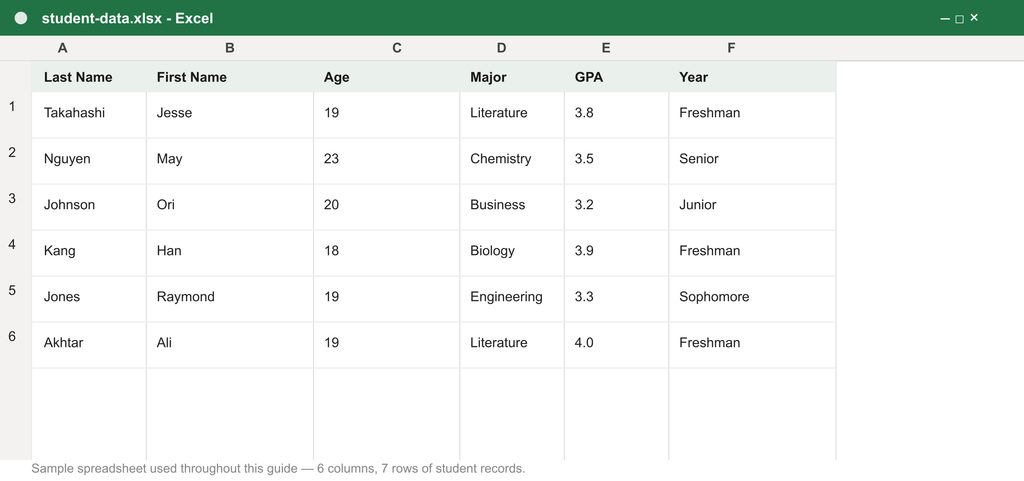
The first thing you need is an Excel spreadsheet. Below is an example spreadsheet with six columns and seven rows of data. The columns separate the last names, first names, ages, majors (subject), GPAs (Grade Point Average), and school year of each student listed in the spreadsheet.
Step two: Create your XML schema
After you have your Excel document set up, you need an XML schema. An XML schema is the document that defines an XML file’s structure.
You can create an XML schema in Notepad, as it is a text file format. Here is a basic structure:
<?xml version="1.0" encoding="UTF-8" standalone="yes"?>
<student-data xmlns:xsi="http://www.w3.org/2001/XMLSchema-instance">
    <record>
       <TAGNAME>data</TAGNAME>
       <TAGNAME2>data</TAGNAME2>
       <TAGNAME3>data</TAGNAME3>
    </record>
</student-data>
The first line is a standard line. It identifies that it is an XML file, using the encoding UTF-8 and the XML version 1.0.
The second line identifies that the data is about “student-data”. If you simplify this line and the last line, you have:
<student-data>
</student-data>
The first line opens the element and the last line, with the “/”, closes it. Every opening tag needs a matching closing tag, in the right order.
Everything between those tags belongs to the element, here “student-data”. Because it is the outermost element, it is also called the root element.
The “student-data” above includes a “record” element, which has three data elements, TAGNAME, TAGNAME2, and TAGNAME3.
You can change the name of the <TAGNAME> tags into the names of your columns. They do not have to be the exact name of the columns, as long as they’re in the correct order. You only need to fill out a few examples manually, but we can get Excel to do the rest for us later.
Here’s an example XML schema for our Excel spreadsheet:
<?xml version="1.0" encoding="UTF-8" standalone="yes"?>
<student-data xmlns:xsi="http://www.w3.org/2001/XMLSchema-instance">
    <record>
       <LastName>Takahashi</LastName>
       <FirstName>Jesse</FirstName>
       <Age>19</Age>
       <Major>Literature</Major>
       <GPA>3.8</GPA>
       <Year>Freshman</Year>
    </record>
    <record>
       <LastName>Nguyen</LastName>
       <FirstName>May</FirstName>
       <Age>23</Age>
       <Major>Chemistry</Major>
       <GPA>3.5</GPA>
       <Year>Senior</Year>
    </record>
</student-data>
As you can see, data elements have become <LastName> and <FirstName>, in line with the columns in our data set. You do not need to have the lines indented, but that aids readability.
Also take note of the <student-data> tags that hold the contents of each <record> tag. It should be renamed according to the name of your Excel spreadsheet. In this example, our Excel workbook is called student-data.xlsx, and so our root element tag is called <student-data>.
Don’t forget to name your XML schema with a .xml at the end. In this example, our schema is simply called schema.xml, if you’d like to follow along.
If you want to know more about XML documents, how they work, and what they’re useful for, check out this introduction to XML course. You can also get started with this beginners XML tutorial class.
Step three: Enable the Developer tab
If the Developer tab is not available, you need to enable it:
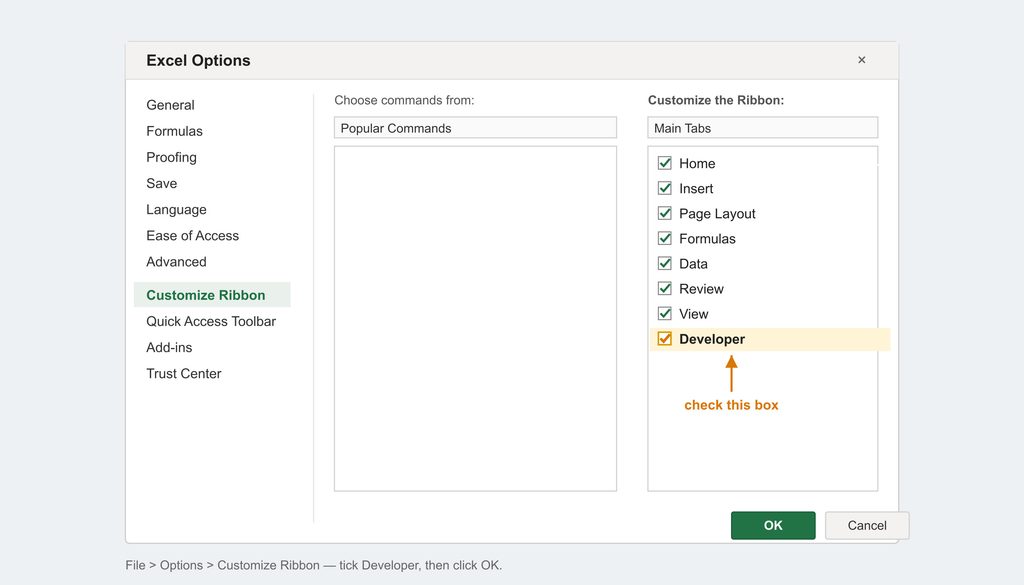
- Go to File > Options > Customize Ribbon.
- In the Main Tabs list on the right, tick the Developer check box.
- Click OK. The Developer tab now shows in the ribbon.
Step four: Open the XML Source pane
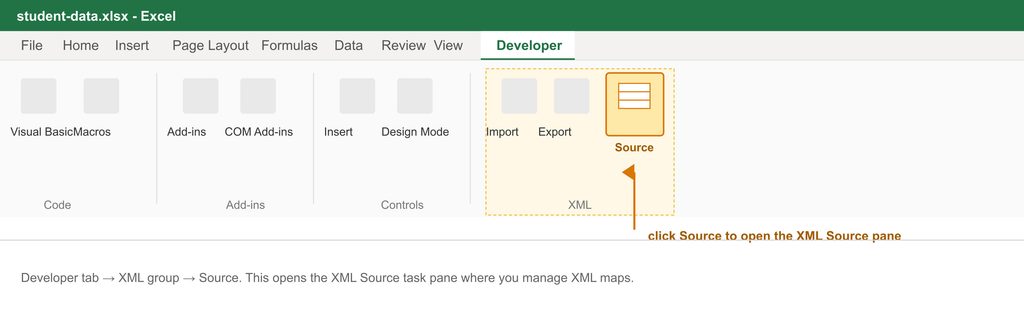
Now that you’ve brought up the Developer tab and clicked on it, you should see a number of sections called Code, Add-Ins, Controls, and XML.
In the XML section, click on the large button that reads Source. This will bring up the XML Source task pane to the right of the screen, where you’ll have the option to manage XML maps. That’s what we want to do next.
Step five: Add an XML map
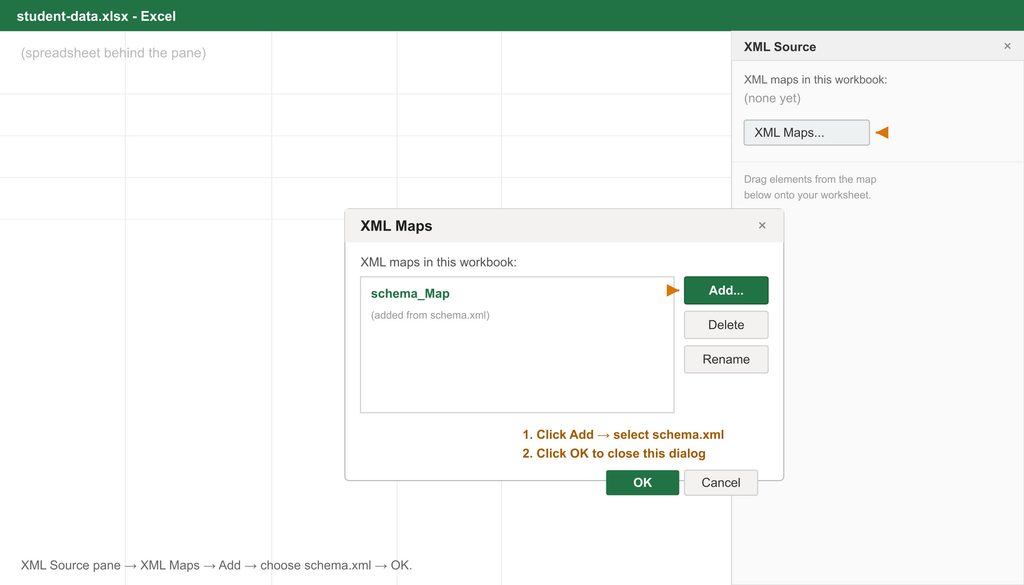
- In the XML Source task pane, click XML Maps (bottom right).
- In the dialog, click Add, select your schema.xml file, and click OK.
- Click OK again to add the map.
- If a warning appears, click OK; it is expected.
Step six: Drag and drop the XML elements into your spreadsheet
Each of your columns should appear as a new element in the record tree created by the XML Source task pane. Drag each element individually into its appropriate column, starting at Row 1.
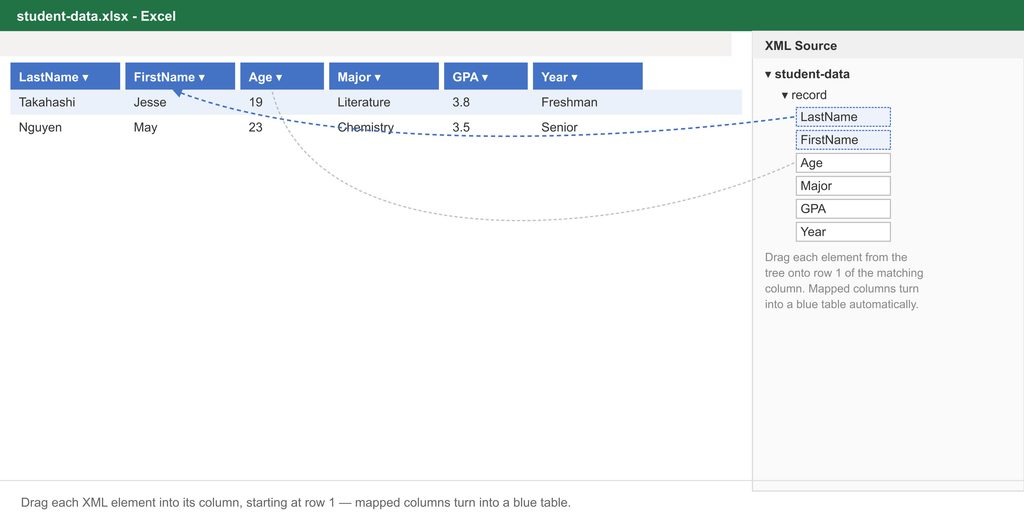
Converted columns become part of a table and should turn blue. Do this until all of your columns have been mapped to the XML elements.
Step seven: Export your XML data
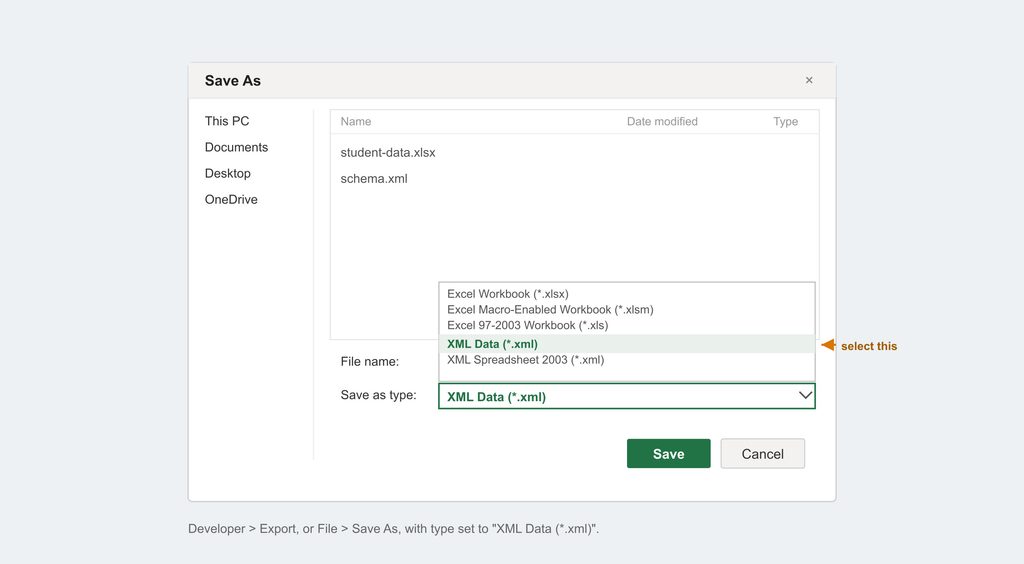
- Click Developer > Export, or File > Save As and set the file type to XML Data (*.xml).
- Name the file and save.
- If Excel warns that non-XML features (formatting, pictures, objects) will be lost, continue; that is expected for a data-only export.
- Save your XML file, and Excel will export it to XML.
You can then open it in Notepad to see your results. Go to File > Open, and change the file type from “Text Files (*.txt)” to “All Files”:
<?xml version="1.0" encoding="UTF-8" standalone="yes"?>
<student-data xmlns:xsi="http://www.w3.org/2001/XMLSchema-instance">
	<record>
		<LastName>Takahashi</LastName>
		<FirstName>Jesse</FirstName>
		<Age>19</Age>
		<Major>Literature</Major>
		<GPA>3.8</GPA>
		<Year>Freshman</Year>
	</record>
	<record>
		<LastName>Nguyen</LastName>
		<FirstName>May</FirstName>
		<Age>23</Age>
		<Major>Chemistry</Major>
		<GPA>3.5</GPA>
		<Year>Senior</Year>
	</record>
	<record>
		<LastName>Johnson</LastName>
		<FirstName>Ori</FirstName>
		<Age>20</Age>
		<Major>Business</Major>
		<GPA>3.2</GPA>
		<Year>Junior</Year>
	</record>
	<record>
		<LastName>Kang</LastName>
		<FirstName>Han</FirstName>
		<Age>18</Age>
		<Major>Biology</Major>
		<GPA>3.9</GPA>
		<Year>Freshman</Year>
	</record>
	<record>
		<LastName>Jones</LastName>
		<FirstName>Raymond</FirstName>
		<Age>19</Age>
		<Major>Engineering</Major>
		<GPA>3.3</GPA>
		<Year>Sophomore</Year>
	</record>
	<record>
		<LastName>Akhtar</LastName>
		<FirstName>Ali</FirstName>
		<Age>19</Age>
		<Major>Literature</Major>
		<GPA>4.0</GPA>
		<Year>Freshman</Year>
	</record>
</student-data>
Excel formatted all of this information automatically, so you didn’t have to.
The XML map export handles most sheets in one pass, but it saves a maximum of 65,536 rows per file. For bigger sheets, see the steps below for exporting in batches.
How to export more than 65,536 rows to XML
Excel’s XML data export saves a documented maximum of 65,536 rows per file. If your sheet has more rows than that, you can export it in two batches and then combine the files:
- Note your total row count and subtract 65,537 to get x.
- Delete x rows from the top, then export the sheet as XML data.
- Close the file without saving, then reopen the sheet.
- Delete everything up to row x, then export again.
- Combine the two XML files to reproduce the full data set.
If you would rather skip the split, keep the data as .xlsx, or save it as XML Spreadsheet 2003, which drops the mappings. Both are documented Excel behaviors, so pick whichever fits how the receiving system reads your data.
Troubleshooting common Excel to XML export errors
If your export fails, the cause is usually the schema or the mapping. Below are the common errors and the documented fix for each.
Fixes when your Excel to XML export fails
- Required elements aren’t mapped: drag the required elements (marked with a red asterisk) onto the sheet.
- The XML maps can’t be exported: the schema uses an unsupported structure, so simplify it or export as XML Spreadsheet 2003.
- No mapped ranges: you have not mapped any elements yet, so open Developer > Source and drag elements onto the sheet, or save as .xlsm.
This was a simple example, and in the future you might find yourself facing some tougher scenarios. If that happens, stronger Excel skills will help. If you’re interested in going from beginner to advanced, check out this course on Udemy:
Recommended Udemy course

That’s it, you’ve converted your Excel data to XML. With the schema mapped once, you can reuse it whenever you need to move spreadsheet data into another system.
FAQ
What is Excel XML format?
Excel XML format is a data file that Excel exports based on an XML schema, which defines the file’s structure. You create the schema in Notepad, load it under Developer > Source, and match it to your data. You can then export with Developer > Export, or File > Save As > XML Data.
How do I open an XML file in Excel?
To open an XML file in Excel, go to File > Open. Change the file type from “All Excel Files (.xl)” to “XML Files (*.xml)”. Navigate to the file, click it, and click OK to open it in Excel.
How do I view an XML file?
You can view an XML file in either Notepad or Excel. In Notepad, go to File > Open and change the file type from “Text Documents (.txt)” to “All Files (.)”. In Excel, go to File > Open and change the file type to “XML Files (.xml)”.
Is an Excel file already an XML file?
No; modern .xlsx files are zipped XML internally, but that is not the same as a plain XML data file you export. When you need a standalone XML file for another system, you still map a schema and export as shown above.
How do I make XML files open in Excel by default?
Right-click an XML file, choose Open with > Choose another app, pick Excel, and select “Always”. Windows will then open XML files in Excel each time you double-click one.