

Article Summary
Adobe Illustrator is Adobe's professional vector graphics software for creating logos, icons, illustrations, and branded artwork. This article covers its core features, use cases, how it compares to Photoshop, and who can learn it. Readers will gain a clear picture of what Illustrator does and whether it fits their creative or career goals.
Have you ever looked at a company logo, an app icon, or one of those beautifully designed infographics on social media and wondered how it was created?
There’s a good chance Adobe Illustrator was involved.
Illustrator is responsible for much of the visual world around us. From the logo on your morning coffee cup to the icons on your phone and the branding behind your favourite companies, Illustrator helps designers create artwork that looks crisp and professional at any size.
Now, before you start thinking, “That sounds great, but I’m not a designer,” here’s some good news. Illustrator isn’t just for creative professionals with years of experience. Small business owners use it to create logos, marketers use it to design campaigns, web designers use it to build graphics, and complete beginners use it to start entirely new careers.
So what exactly is Adobe Illustrator, and why has it become the industry standard for vector design?
Let’s find out.
A Brief History of Adobe Illustrator
Adobe Illustrator has been around for quite a while. In fact, the first version was released back in 1987 for the Apple Macintosh.
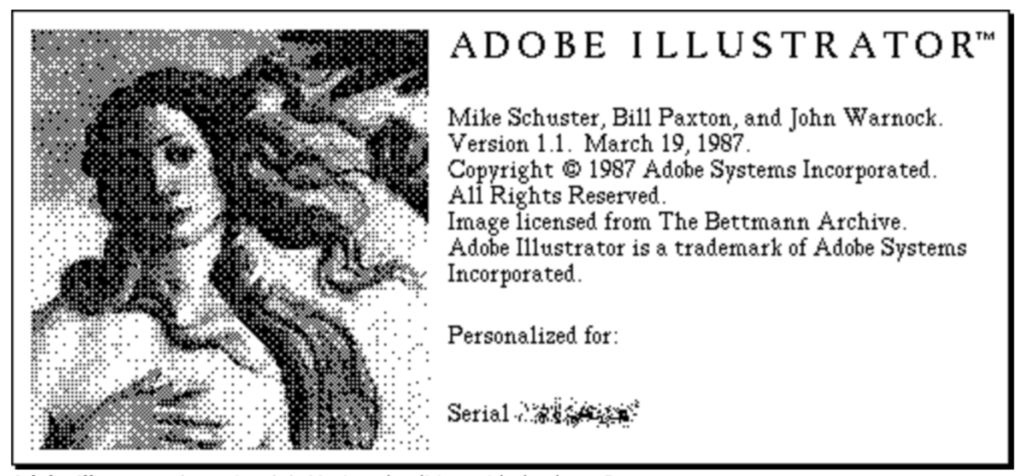
At the time, it was something of a game changer. Designers could suddenly create artwork on a computer that could be resized without losing quality, something that was incredibly impressive in an era when digital design was still in its infancy.
Over the years, Illustrator has continued to evolve, with Adobe introducing features such as layers, transparency effects, gradient meshes, and countless tools that have helped make designers’ lives easier. In 2013, Illustrator became part of Adobe Creative Cloud, moving to the subscription model that many users are familiar with today.
Fast forward to the present day, and Illustrator continues to receive regular updates, including AI-powered tools that help speed up workflows and unlock new creative possibilities.
While there are several vector design applications available, including Affinity and others, Adobe Illustrator remains the industry standard. If you walk into a professional design studio, marketing agency, or branding company, there’s a very good chance you’ll find Illustrator at the heart of their creative workflow.
Top 10 Uses for Adobe Illustrator
Adobe Illustrator is packed with features, but don’t let that intimidate you. Most designers rely on a handful of core tools and functions to create everything from simple logos to complex illustrations.
Here are ten of Illustrator’s most useful capabilities and why they matter.
1. Creating Logos
One of Illustrator’s biggest strengths is logo design. Because logos are created as vector graphics, they can be scaled from a business card to a billboard without losing quality.
2. Designing Vector Illustrations
Whether you’re creating characters, icons, diagrams, or digital artwork, Illustrator gives you the tools to draw and edit precise vector graphics that remain sharp at any size.
3. Creating Icons and Graphics
Ever wondered where all those website and app icons come from? There’s a good chance they were created in Illustrator. It’s the perfect tool for producing clean, professional-looking graphics.
4. Working with Typography
Illustrator isn’t just about shapes and illustrations. It also provides powerful typography tools, allowing you to create eye-catching text effects, custom lettering, and logo designs.
5. Building Infographics
Need to turn complicated information into something visually appealing? Illustrator makes it easy to combine text, charts, icons, and illustrations into engaging infographics.
6. Designing Marketing Materials
From flyers and posters to brochures and advertisements, Illustrator helps designers create promotional materials that look polished and professional.
7. Creating UI/UX Mockups
Planning a website or mobile app? Illustrator can be used to create wireframes, interface elements, and design mockups that help bring digital projects to life before development begins.
8. Creating Social Media Graphics
Social media is a visual world, and Illustrator is a fantastic tool for creating eye-catching posts, banners, stories, and promotional graphics that help brands stand out online.
9. Creating Scalable Artwork
One of the biggest advantages of Illustrator is the ability to resize artwork without losing quality. This makes it ideal for projects that need to appear in multiple sizes and formats.
10. Preparing Artwork for Print and Digital Use
Whether your design is destined for a website, social media platform, magazine, or large-format print, Illustrator gives you the tools to export your work in the correct format for the job.
The beauty of Illustrator is that even with a small set of skills, you can start creating impressive designs surprisingly quickly.

So What is a Vector Image?
One of the first things you’ll hear when learning Illustrator is that it creates “vector graphics.”
Sounds technical, doesn’t it? The easiest way to think about a vector graphic is as a collection of shapes and lines that Illustrator remembers mathematically rather than storing as individual coloured squares.
Imagine drawing a circle with a compass. No matter how large or small you make it, it’s still a perfect circle.That’s essentially how vector graphics work.
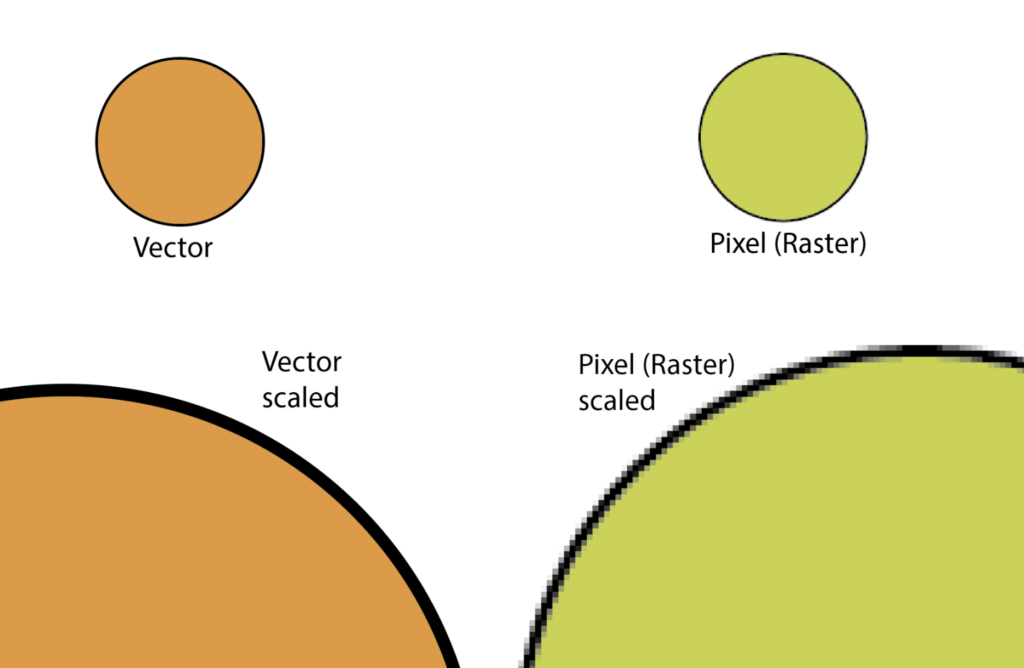
Compare that with a photograph. A photo is made from thousands (or millions) of tiny pixels. Enlarge it too much and those pixels become visible, giving you that blurry, blocky look we’ve all seen at some point.
Vector graphics don’t have that problem. You can scale them to any size and they’ll remain perfectly sharp.
Key benefits of vector graphics
- Unlimited scalability: Resize without quality loss.
- Easy editing: Since vector images are made up of different lines, curves, shapes, and points, they offer virtually unlimited editing opportunities.
- Transparent backgrounds: Unless you create a background for your vector image, it will default to transparent. This makes it easy to place logos on existing webpages or add illustrations into larger designs.
- Versatile file conversion: Vector images can be easily converted to pixel formats like JPEG or PNG, but pixel images cannot be easily converted to vectors. If you’re unsure whether you’ll need to resize your image later, start with a vector.
- Smaller file sizes: Vector files are typically smaller than their pixel counterparts.
Use vector graphics when you need artwork that will appear at multiple sizes or on different media. Use raster images for photographs and complex imagery with subtle color graduations.
Adobe Illustrator and Creative Cloud
One of the biggest advantages of using Illustrator is that it doesn’t work in isolation. It plays incredibly well with the rest of Adobe’s Creative Cloud applications.
Imagine you’ve just designed a logo in Illustrator. What next?
Perhaps you want to add special effects and textures in Photoshop. No problem.
Maybe you’re creating a brochure, magazine, or booklet in InDesign. Simply place your Illustrator artwork into the layout and continue designing. Better still, Illustrator files can now be opened directly in InDesign, making the workflow even smoother.
Want to bring your artwork to life? Import it into After Effects and turn a static illustration into an eye-catching animation. It’s a fantastic way to create animated logos, social media content, and motion graphics.
Illustrator works seamlessly with applications such as:
- Adobe Photoshop
- Adobe InDesign
- Adobe After Effects
- Adobe Animate
- Adobe Express
- And many more
The real magic happens when you start using these applications together. Each one has its own strengths, and Illustrator often becomes the starting point for larger creative projects.
Because everything is connected through Creative Cloud, your files, fonts, libraries, colours, and assets can be synced across devices. Whether you’re working on a desktop computer in your office, a laptop in a coffee shop, or an iPad on the sofa, your projects are always within reach.
It’s a bit like having a creative toolbox where all the tools know how to work together.
Adobe Illustrator vs. Photoshop
One of the most common questions beginners ask is, “Should I learn Illustrator or Photoshop?”
The answer depends on what you want to create.
While both applications are used to create and edit graphics, they work in very different ways. Illustrator creates vector graphics, while Photoshop works with raster images (pixels).
Think of it this way:
- Photoshop is the tool of choice for editing and enhancing photographs.
- Illustrator is designed for creating logos, icons, illustrations, and other artwork from scratch.
| Feature | Adobe Illustrator | Adobe Photoshop |
| Best for | Logos, icons, illustrations, typography | Photo editing and image manipulation as well as painting |
| File type | Vector | Raster |
| Scaling | Infinite without losing quality | Can become pixelated when enlarged |
| Main tools | Pen Tool, Shape Tools, Pathfinder | Brushes, Filters, Selection Tools |
So which one should you choose?
- If your goal is to edit photographs, create image effects, retouch pictures or paint pictures using the brushes, Photoshop is the better option.
- If you want to design logos, illustrations, icons, or other scalable graphics, Illustrator is the clear winner.
Of course, many designers use both. In fact, Illustrator and Photoshop work brilliantly together, allowing you to combine the strengths of each application in your creative projects and even work between them as you can add an Illustrator graphic to a photoshop image yet still edit the graphic in Illustrator and it will update in Photoshop.
Career Paths that use Adobe Illustrator
Have you ever wondered whether learning Illustrator is actually worth the effort?
For many creative professionals, the answer is a resounding yes.
Adobe Illustrator is one of the most widely used design applications in the world and has become a core tool for many creative careers. Whether you’re interested in graphic design, illustration, branding, or digital content creation, Illustrator is a skill that can open doors and expand your creative opportunities.
Professionals who regularly use Illustrator include:
- Graphic Designers
- Brand Designers
- Illustrators
- UI/UX Designers
- Marketing Designers
- Art Directors
- Packaging Designers
- Product Designers
But you don’t need to be a full-time designer to benefit from learning Illustrator.
Basic Illustrator skills can be incredibly useful in fields such as marketing, advertising, web development, and branding. Being able to create a quick mock-up, design a simple logo, or produce eye-catching graphics can save time, improve your workflow, and help you stand out from the crowd.
Even if you’re not planning a career in design, Illustrator is a valuable creative skill that allows you to bring your ideas to life professionally and confidently.
Is Adobe Illustrator Beginner Friendly?
Many people are intimidated by Adobe Illustrator, especially if they believe they have no artistic skill. People commonly assume that if they can’t draw a flower on paper, they certainly won’t be able to draw one on the computer.
In reality, Adobe Illustrator doesn’t require any prior knowledge or skill in drawing or painting. You can use Illustrator to create freehand drawings if you want. But you don’t need to be experienced in hand-sketching or other forms of art to learn how to use Illustrator to create excellent graphics.
If you have ever used another Adobe program such as Photoshop or InDesign, it will be fairly easy to pick up Illustrator as well. These companion products all feature a very similar user interface, so you’ll simply need to learn the specific tools and features of the Illustrator software.
But if you have never used any Adobe design software or any graphic design tool before, you may find a steeper learning curve in picking up Illustrator. If you are pursuing a career in graphic design or digital art, it will be worth the time and effort to become skilled in Adobe Illustrator, as it can make your job much more efficient.
Best way to learn Adobe Illustrator
The best way to get started is by creating real projects. While opening the software and experimenting with the tools yourself can be fun, it can also be very frustrating.
A structured course can make the process so much easier. Courses such as my Adobe Illustrator – Beginner to Pro Level with AI or Illustrator on the iPad – Zero to Hero will guide you gently through the tools and techniques using real-world projects while helping you build confidence along the way.
Once you’ve mastered the fundamentals, put your skills into practice with projects such as:
- Flat-art puppy character design in Adobe Illustrator
- Illustrator on iPad: Create 10 amazing vector illustrations
- 10 amazing logo tutorials in Adobe Illustrator on the iPad
Pro Tip: Adobe offers a free trial of Illustrator, so why not download it and start exploring? The best way to learn is to jump in and start creating.
Illustrator can look very intimidating but with a little help you will find that in a very short time, you will be creating amazing graphics and having so much fun with it.